
People and points
Everyone in the household, adults included, is in Admin › People. Each row shows their points, and a child’s money when they have some. Adults earn points only, so they have no money balance.
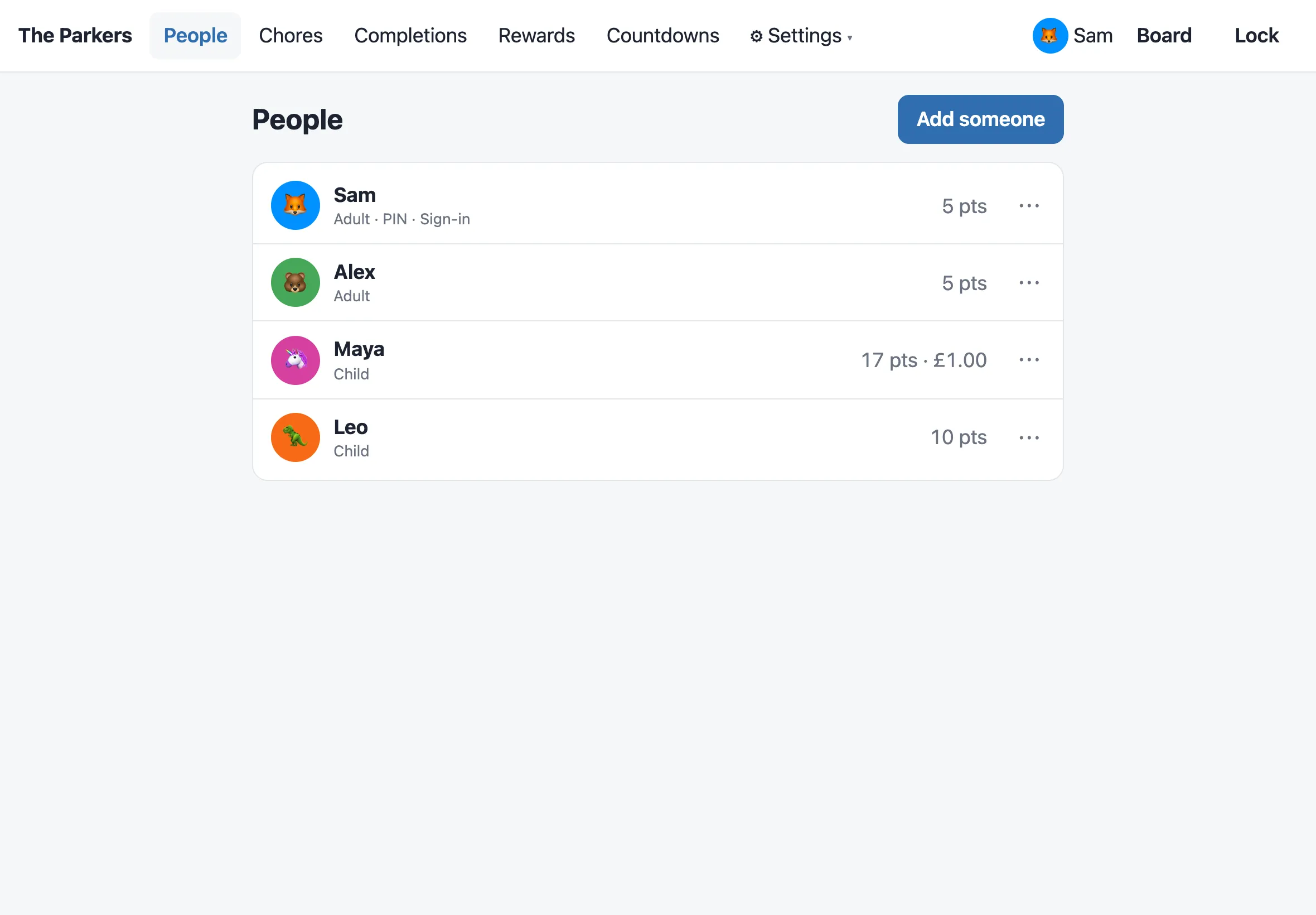
Adding someone
Section titled “Adding someone”Go to Admin › People › Add someone.
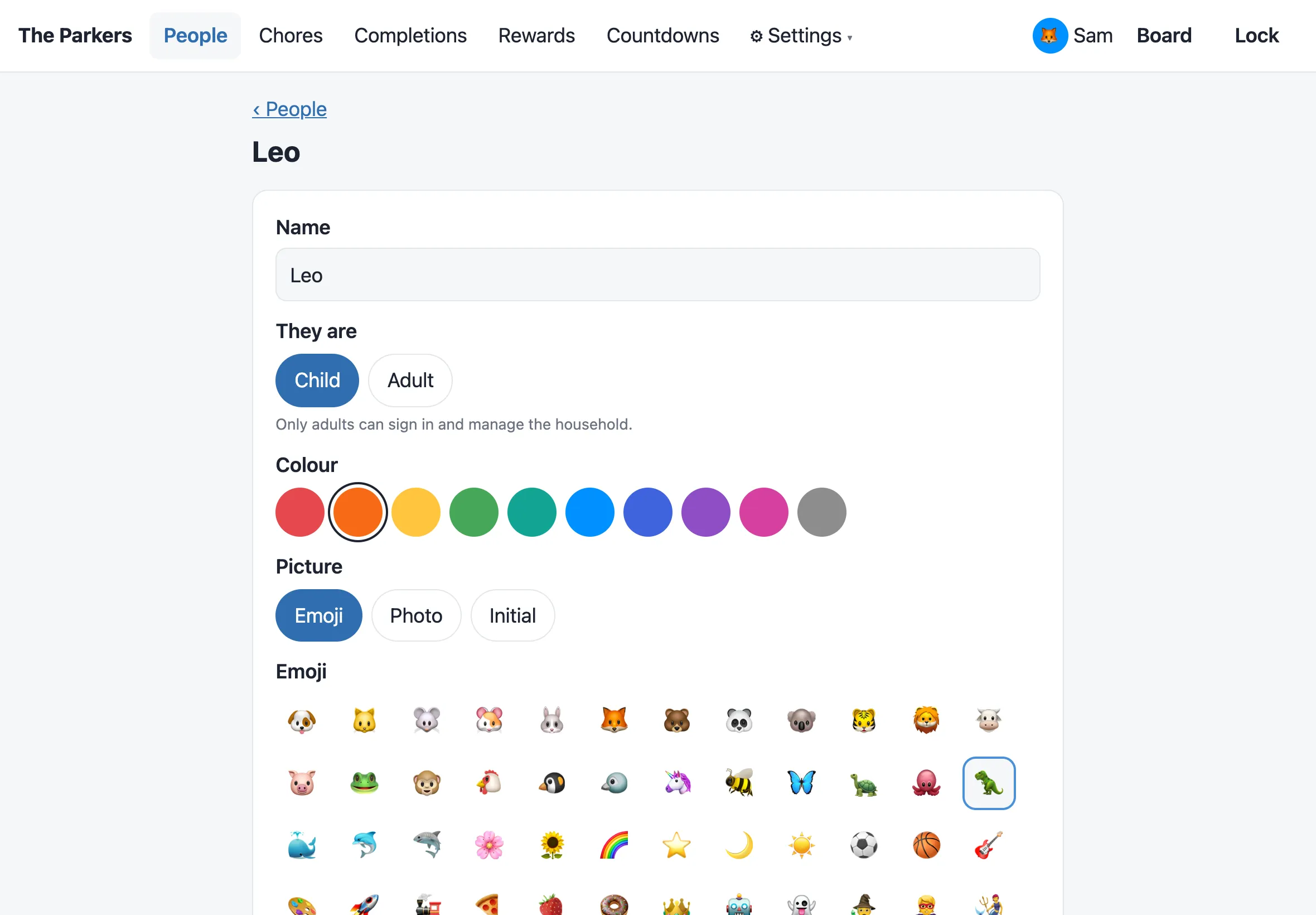
Each person has:
- A name, and whether they’re a child or an adult. Only adults can sign in and manage the household.
- A colour, which their column, progress bar and ticks use on the board.
- A picture: an emoji, a photo (JPEG, PNG or GIF up to 8 MB, cropped to a square) or just their initial.
- Picture cards, for children only. Their column shows big emoji tiles instead of a list, for children who can’t read yet. See Picture cards.
- Saving for: a reward they’re saving up for, once you’ve added some rewards.
- Birthday (optional): the day and month, and the year if you like. It counts down on the board every year, and with the year, it says how old they’re turning.
- Can add countdowns, for children only. They can add their own countdowns on a household display, after their PIN.
- An order on the board, lowest first.
Archive hides someone from the board. Their history and balance are kept, and you can restore them from the People list.
PINs and sign-ins
Section titled “PINs and sign-ins”Once you’ve saved someone, their page has more sections.
PIN (4–6 digits) says “PIN is set ✓”, with Change PIN and Remove, or Set a PIN when there isn’t one.
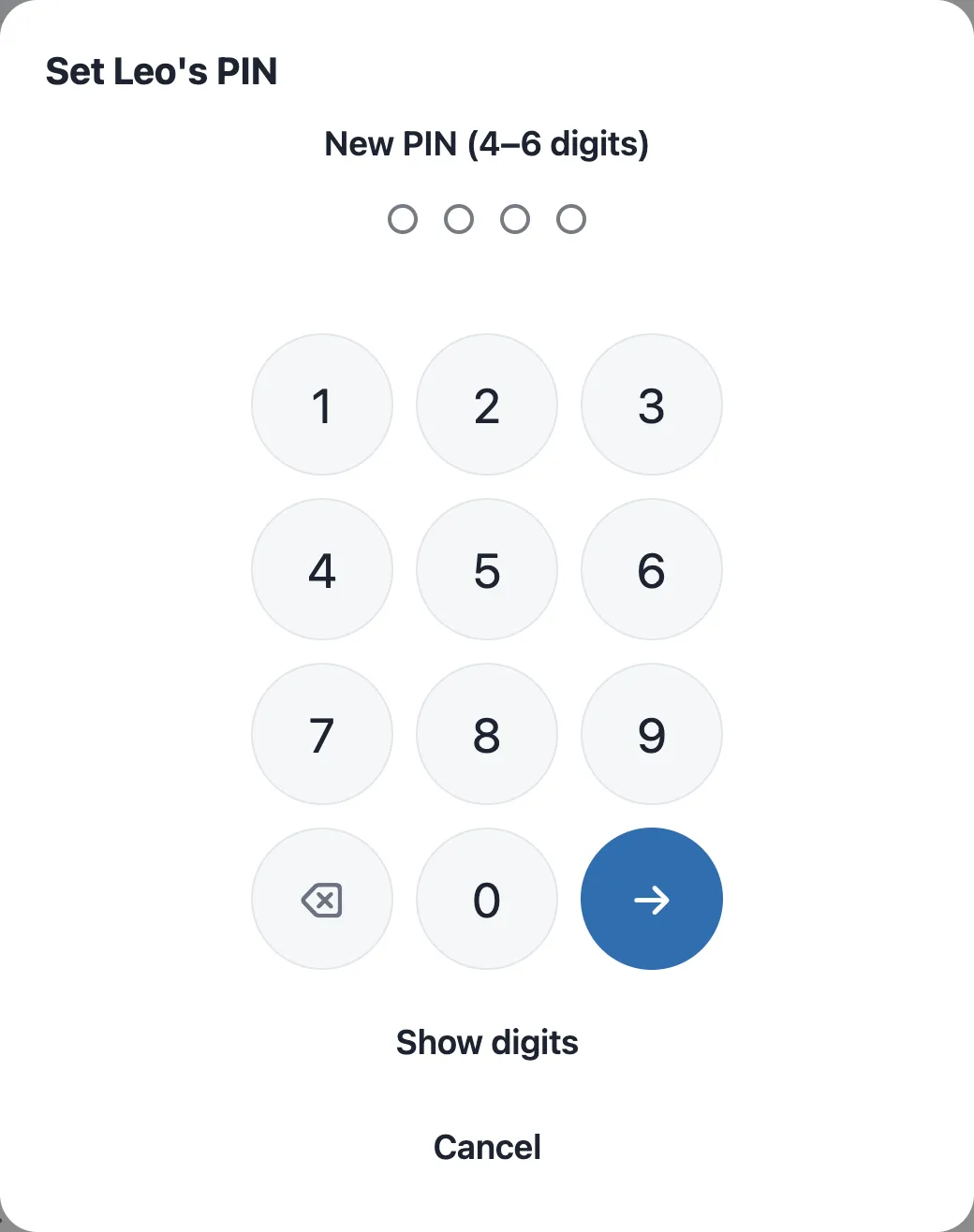
Set a PIN or Change PIN opens Ingle’s number keypad in a popup. It’s the one used to unlock, so a tablet doesn’t bring up its keyboard. Type the PIN at New PIN (4–6 digits) and tap →, then type it again at Confirm PIN. It’s saved when both match; if they don’t, it says “Those didn’t match. Start again.” Show digits shows the numbers as you type, and Cancel changes nothing. Remove asks first.
A PIN does different things for adults and children:
- An adult’s PIN unlocks admin on a household display, and opens their own My money.
- A child’s PIN opens their own My money on a household display, and nothing else. It can’t open admin, unlock the displays or open anyone else’s money. They can type it in themselves while you watch.
Sign-in is for adults only: an email and password for managing Ingle from their own phone or computer.
Changing a child to an adult removes their PIN, so a PIN chosen for My money never starts unlocking admin. Set them a new one. Changing an adult to a child removes their PIN and sign-in, and isn’t allowed for the last adult who can sign in.
Adjusting points
Section titled “Adjusting points”Sometimes points need to change without a chore: a bonus for helping out, or points taken away for hitting a sibling. On a person’s page, the Points section does it.
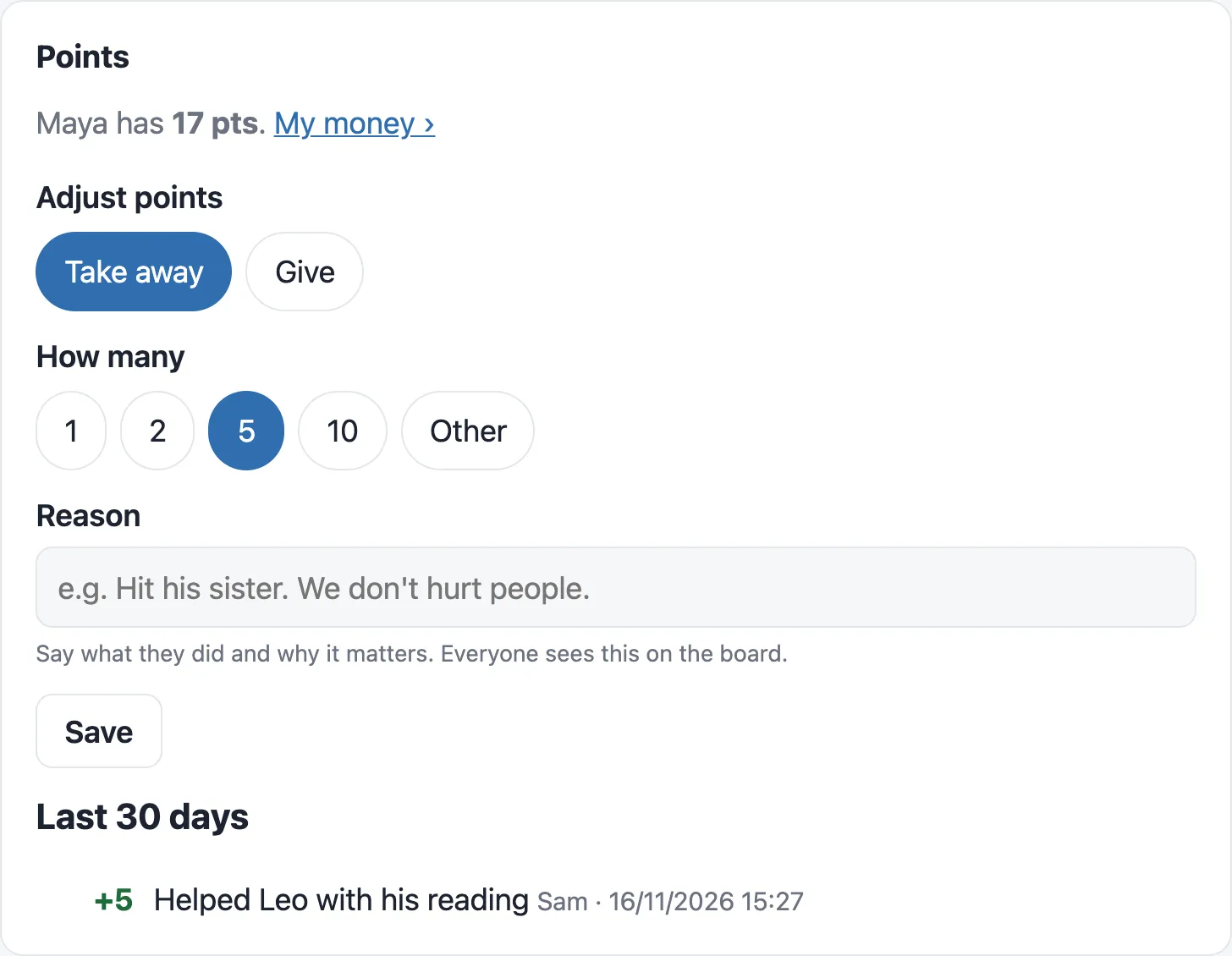
- Choose Take away or Give.
- Tap 1, 2, 5 or 10, or Other for any number up to 1,000.
- Write the reason. It’s required, and reasons used before in the household are suggested.
- Tap Save.
Everyone at the board can see the reason on the person’s sheet, so say what they did and why it matters: “Hit his sister. We don’t hurt people.” is clearer to a child than “Naughty”.
- Undo takes it back for 10 minutes.
- Under Last 30 days, the page lists the changes with who made each one.
- Points can go below zero, so a balance can read “−5 pts” until they earn it back. Points held for a waiting reward claim stay held, and an adult can still approve or decline the claim.
- It changes points only. Money isn’t adjusted here.
On the board, the person’s sheet lists their recent Points changes with the reasons, and This week counts them, so it can be negative.
From the People list
Section titled “From the People list”You don’t need to open each person. On Admin › People, each row has a ⋯ menu with Give points, Take points away and Edit. Give and Take open the same form (how many and a reason) in a pop-up. After saving you’re back on the list, with Undo.
Move to bank
Section titled “Move to bank”Ingle never moves real money: pocket money is a tally. When you pay some out, record it so it comes off their balance.
- Send the money in your banking app.
- On their page in Admin › People, find Move to bank.
- Enter an amount, or tick All of it, and tap Record the move.
It comes off their balance straight away, and shows in their My money history. It’s for children only, as adults have no money, and suits paying everything out at the end of the month.
Children can also ask for money to go to their bank themselves, from My money. Their requests wait in Admin › ⚙ Settings › Bank. See Moving money to the bank.
Bank balance
Section titled “Bank balance”A child’s page has a Bank balance section, for what’s in their real bank account. They see it in My money, and it isn’t shown anywhere else.
- Enter an account name (such as “Monzo”) and the balance, then tap Update. Ingle records when it was checked.
- Money moved to the bank from Ingle is added on by itself, but that doesn’t count as a check, because nobody looked at the real account.
- After 14 days without an update, Admin home says “Check Maya’s bank balance”.
- Remove bank balance takes it away, and My money stops showing it.
The balance is typed in by hand. Ingle doesn’t connect to any bank.
Interest and matching
Section titled “Interest and matching”A child’s page also has Earns interest, once the Bank of Mum and Dad is on in Admin › ⚙ Settings › Settings, and Match savings, for adding a bit extra while they save for a goal. See Interest and matching.
Move to bank, Bank balance and children’s PINs are part of the My money module, and go when it’s switched off.